Document Container

Container

Use the Container Block to structure, style, and nest elements without juggling between section, container, or div blocks. One block to rule them all.

Table of content

TL;DR / Overview

Nilead’s Container Block merges the roles of sections, containers, and div blocks into one powerful and flexible layout tool. Whether you're designing headers, wrapping content, or organizing page structure, this block does it all — full-width layouts, centered content, nesting, and advanced styling in one place.

Prerequisites

  • Access to the Nilead Visual Website Builder

  • Familiarity with using the Add panel and the Layout section

  • Basic understanding of web page structure (semantic tags, content blocks)

Walkthrough

What is the Container Block?

The Container Block replaces the need to switch between sections, containers, and div blocks. Think of it as:

  • A section: full-width layout for banners or content blocks

  • A container: centered content with default padding

  • A div block: versatile wrapper for custom styling or grouping

By merging all these, you can use one element for nearly every layout scenario on your website.

How to Add a Container Block

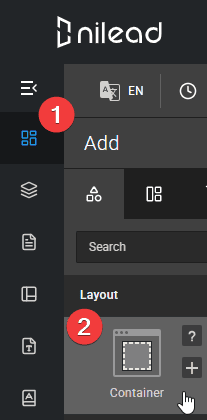
  1. Open the Add panel in the left sidebar

  2. Navigate to Layout

  3. Drag and drop the Container Block onto your canvas

💡 By default, it stretches across the full browser width, but you can adjust it as needed.

How to Add a Container Block

Styling the Container Block

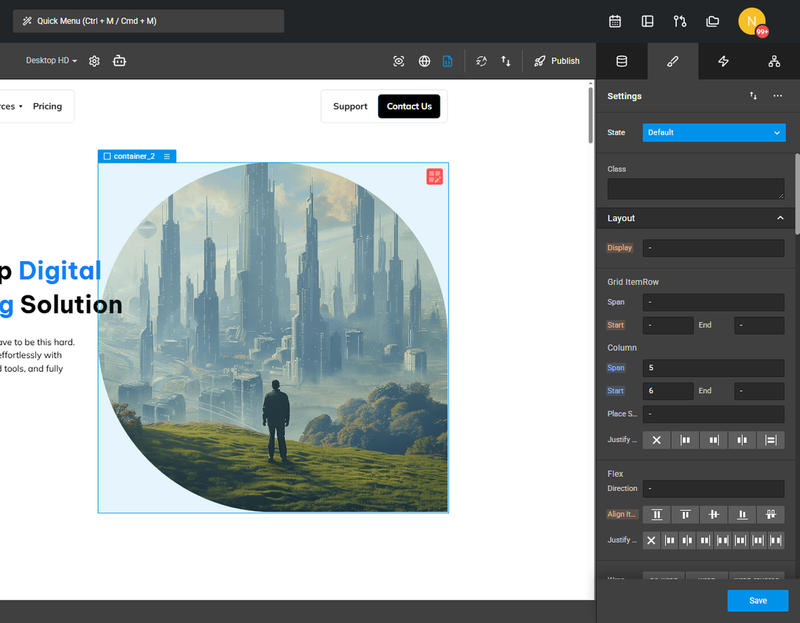
Customize it just like any other layout element:

  • Set background colors or images

  • Add drop shadows, borders, or corner radius

  • Adjust margins and padding for spacing

  • Nest other Container Blocks for layered design

Every styling option available in the Style panel works on Container Blocks — giving you complete control over design.

Styling the Container Block

Duplicating & Nesting

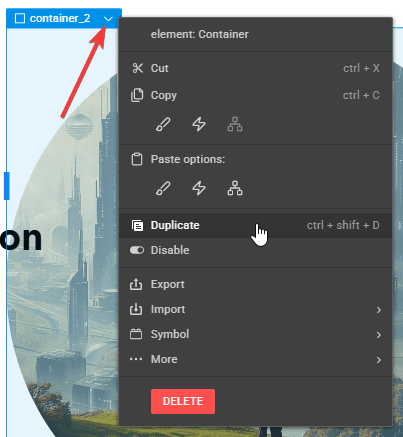
  • Right-click any Container Block and choose Duplicate to reuse layouts

  • Nest Container Blocks inside one another to create complex sections (e.g., columns inside banners, footers with grouped widgets)

Each nested block can have its own style, tag, and function.

Duplicating & Nesting

Spacing & Alignment

Container Blocks help control layout flow and spacing.

  • Use padding inside the block to create breathing room

  • Use margin outside the block to separate it from surrounding elements

  • Avoid using empty Container Blocks solely for spacing — margins and padding are more efficient

Change the HTML Tag

For semantic clarity or accessibility, you can change the tag of any Container Block:

Change the HTML Tag

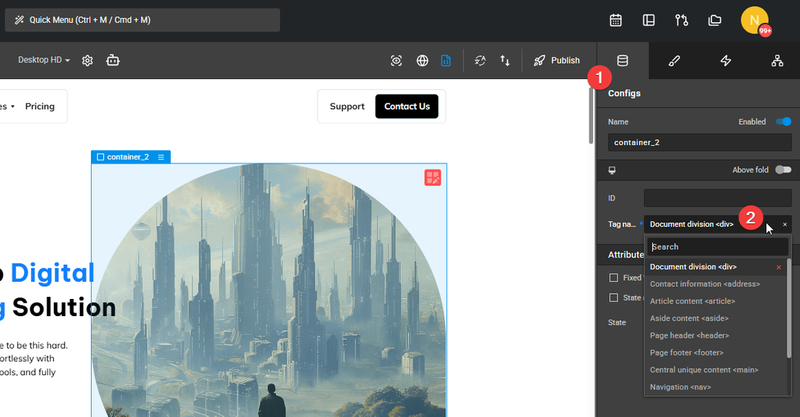
  • Choose from div, section, header, footer, aside, or main

  • Open the Settings panel and select the desired tag

This is especially useful for SEO, accessibility, and clean markup.

Pro Tips

  • Think of the Container Block as your universal layout tool

  • Use it for headers, cards, sections, forms — you name it

  • Tag it semantically to improve page structure

  • Nest responsibly: deep nesting is powerful but should be organized clearly

  • Container Blocks inherit behavior and design logic from older layout structures, so it will feel familiar


FAQs

1. Do I still need to use “div blocks” or “sections”?
No — the Container Block combines both and more. It’s the only block you need for layout.

2. Can I use Container Blocks for semantic layout (e.g., header, footer)?
Yes. You can change the HTML tag of each Container Block to fit semantic needs.

3. Can I apply global styles to Container Blocks?
Absolutely. Use classes or global style presets for consistency.

4. Is there a performance difference when nesting many Container Blocks?
No significant impact unless you create overly deep or unnecessary nesting.

5. Can I turn an existing layout into Container Blocks?
Yes. Just replace older elements with Container Blocks and apply the same styles or layout logic.

Discord chat

We're available Monday–Friday, security and critical bug fixes are available 24/7.

Facebook page

Get the latest news and updates regarding Nilead platform and services.