Document Getting Started with Search Engine Optimization (SEO)

Getting Started with Search Engine Optimization (SEO)

Set up SEO on Nilead with built-in tools for meta tags, sitemaps, redirects, and analytics — all without external plugins.

Table of content

TL;DR / Overview

Nilead makes it easy to set up SEO best practices without requiring technical expertise. From meta tags to sitemaps and redirects, you can manage everything in one place — enhanced with AI-powered insights and built-in integrations with Google Analytics, Hubspot, and more.

Prerequisites

  • A published website on the Nilead platform

  • Access to the admin dashboard

  • (Optional) Analytics account credentials (Google, Facebook, Yandex, etc.)

  • A basic understanding of what SEO is and why it matters

Wakthrough

Step 1: Understand the SEO Fundamentals

SEO on Nilead revolves around three key areas:

  • Technical Setup: Meta tags, sitemap, robots.txt, canonical URLs

  • Monitoring & Analytics: Track performance with analytics tools

  • Best Practices: Ongoing optimization of content, redirects, structure

SEO is the process of following best practices and standards to ensure that your website can be indexed and ranked high for relevant search results.

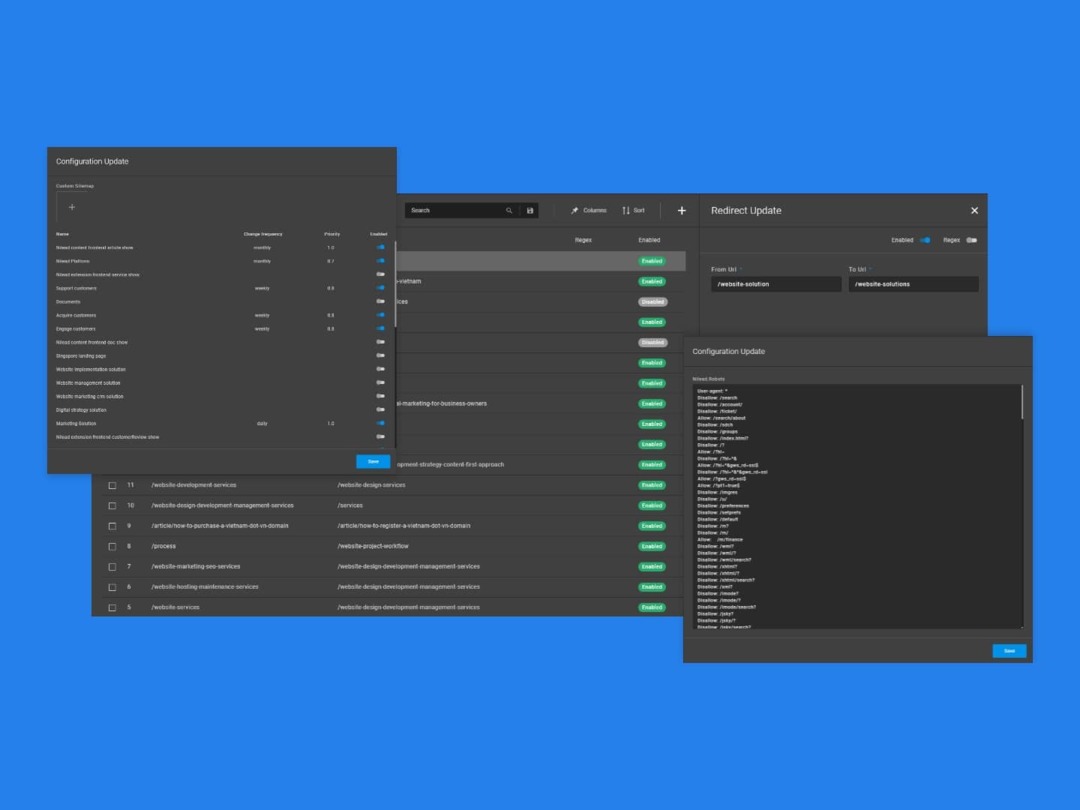
robots and sitemap

Step 2: Configure Page-Level SEO

Go to Pages > [Your Page] > SEO Settings. You can manage page level SEO such as meta tags, Canonical URL, header and footer code by Managing your pages. Here you can:

  • Set the Meta Title and Meta Description

  • Define a Canonical URL

  • Add custom Header/Footer Code (e.g., tracking scripts)

  • Check real-time AI-powered SEO suggestions (if enabled)

Tip: Keep meta descriptions under 160 characters and include target keywords.

Step 3: Manage Your Sitemap

Navigate to Settings > SEO > Sitemap. Nilead has a dedicated sitemap section for you to Manage your sitemap file.

  • View or edit the auto-generated sitemap

  • Include/exclude specific pages

  • Submit the sitemap URL to search engines (e.g., /sitemap.xml)

Tip: A sitemap helps search engines understand your site structure and index pages faster.

Step 4: Manage Your robots.txt

Navigate to Settings > SEO > Robots.txt. Nilead has a dedicated sitemap section for you to Manage your robots.txt file.

  • Modify rules to allow or disallow search engine crawlers

  • Default setup allows indexing unless customized

Tip: Use this to prevent indexing of admin or duplicate content pages.

Step 5: Set Up Redirects

Go to Settings > SEO > Redirects. Nilead has a dedicated sitemap section for you to Manage your redirections.

  • Add 301 redirects from old URLs to new ones

  • Useful for URL changes, deleted pages, or restructured content

Tip: Use consistent slugs and avoid redirect chains to improve crawl efficiency.

Step 6: Connect Analytics Tools

Navigate to Settings > Plugins > Analytics.
Nilead supports built-in connections to:

  • Google Analytics

  • Facebook Pixel

  • Yandex Metrica

  • Hubspot

Just paste your tracking ID and hit Save — no coding required. For more information you can check Managing your plugins.

Tip: Use UTM parameters in links to better track campaign sources.

Step 7: Monitor & Optimize

Though A/B Testing features are on the roadmap, you can:

  • Track traffic trends in Google Analytics

  • Use Nilead’s built-in SEO checklist (coming soon)

  • Watch for page performance alerts in the dashboard

AI Insight: Get notified when SEO performance drops, like a decline in traffic to a service page.


FAQs

1. Do I need to install any SEO plugins?
No. Nilead provides all core SEO functions built-in — no plugins required.

2. Where can I find my sitemap URL?
It’s usually available at yourdomain.com/sitemap.xml. You can customize it in the Sitemap section.

3. Can I block specific pages from search engines?
Yes. Use the Robots.txt or Page Settings to disallow indexing for specific pages.

4. Does Nilead support AI-generated SEO content?
Yes. You can generate page titles, meta descriptions, and even blog content using the AI tools embedded in the builder.

5. How do I handle duplicate content or canonical URLs?
Set canonical URLs per page in the SEO settings to avoid penalties for duplicate content.

Useful articles for you

  1. SEO Basics with actionable steps

  2. Attract visitors with catchy Search Results

  3. 7 tips to plan your Content Marketing

  4. Prepare your site for success with Keyword Research

Discord chat

We're available Monday–Friday, security and critical bug fixes are available 24/7.

Facebook page

Get the latest news and updates regarding Nilead platform and services.